# 65.052 Moving the Recovery Partition to extend a partition size

Here’s how to correctly move the Windows Recovery Partition on a Windows server or a normal Windows system.

This is what my partitions look like in Disk Management.

<div class="wp-block-image" id="bkmrk-"><figure class="aligncenter size-full">[![](https://thedxt.ca/wp-content/uploads/2023/06/diskmgmt-before.png)](https://thedxt.ca/wp-content/uploads/2023/06/diskmgmt-before.png)</figure></div>We will move the 1 GB recovery partition to the end of the disk allowing us to add the 50 GB of unallocated space to the C drive.

# The Process

- Make sure you have a backup of the system you are going to edit the partitions on.
- Open Command Prompt as admin
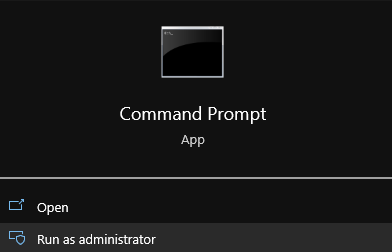
<div class="wp-block-image" id="bkmrk-run-cmd-as-admin"><figure class="aligncenter size-full">![](https://thedxt.ca/wp-content/uploads/2023/06/CMD-Admin.png)<figcaption class="wp-element-caption">Run CMD as admin</figcaption></figure></div><span id="bkmrk--2"></span>

## Disabling The Windows Recovery Partition

- We need to disable the existing Windows Recovery Partition to do that run the command `reagentc /disable`

<div class="wp-block-image" id="bkmrk-disabling-the-recove"><figure class="aligncenter size-full">![](https://thedxt.ca/wp-content/uploads/2023/06/reagentc-disable.png)<figcaption class="wp-element-caption">Disabling the Recovery Partition</figcaption></figure></div>The `reagentc /disable` command will disable the recovery partition and will move the recovery partition into a file named `Winre.wim` and will be located in `C:\Windows\System32\Recovery` (you have to enable showing hidden system files if you want to see it)

<div class="wp-block-image" id="bkmrk-the-windows-recovery"><figure class="aligncenter size-full">![](https://thedxt.ca/wp-content/uploads/2023/06/disabled-windows-RE.png)<figcaption class="wp-element-caption">The Windows Recovery Partition File</figcaption></figure></div>## DiskPart

- Run the command `diskpart` to launch DiskPart

<div class="wp-block-image" id="bkmrk-launching-diskpart"><figure class="aligncenter size-full">![](https://thedxt.ca/wp-content/uploads/2023/06/diskpart.png)<figcaption class="wp-element-caption">Launching DiskPart</figcaption></figure></div>- List the disks in your system. You can do this by using the command `list disk`
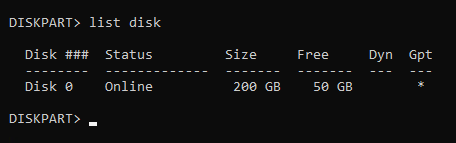
<div class="wp-block-image" id="bkmrk-listing-the-disks-in"><figure class="aligncenter size-full">![](https://thedxt.ca/wp-content/uploads/2023/06/list-disk.png)<figcaption class="wp-element-caption">Listing the disks in DiskPart and showing the disk is a GPT disk</figcaption></figure></div>Pro tip from Matt in the comments, if there’s a \* in the column for Gpt that means the disk is likely a GPT disk and if there isn’t a \* in the Gpt column the disk is likely MBR. Make a note of this as it will be important further down.

- Select the disk you need to move the recovery partition on. You can do this by using the command `select disk` and the disk number. In my setup disk 0 was the correct disk and the command I entered was `select disk 0`.
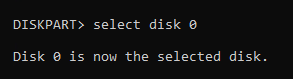
<div class="wp-block-image" id="bkmrk-selecting-the-disk-i"><figure class="aligncenter size-full">![](https://thedxt.ca/wp-content/uploads/2023/06/sel-disk.png)<figcaption class="wp-element-caption">Selecting the disk in DiskPart</figcaption></figure></div>- List the partitions on that disk. You can do this by using the command `list partition`
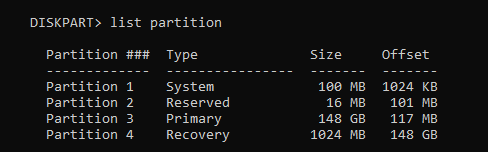
<div class="wp-block-image" id="bkmrk-listing-the-partitio"><figure class="aligncenter size-full">![](https://thedxt.ca/wp-content/uploads/2023/06/list-par.png)<figcaption class="wp-element-caption">Listing the partitions in DiskPart</figcaption></figure></div>- Select the recovery partition. You can do this by using the command `select partition` and the partition number. In my setup partition 4 is my recovery partition and the command I entered was `select partition 4`

<div class="wp-block-image" id="bkmrk-selecting-the-partit"><figure class="aligncenter size-full">![](https://thedxt.ca/wp-content/uploads/2023/06/sel-par.png)<figcaption class="wp-element-caption">Selecting the partition in DiskPart</figcaption></figure></div>The recovery partition is a protected partition so we need to use a bit more force to delete it.

- Force the deletion of the recovery partition. You can do this by using the command `delete partition override`

<div class="wp-block-image" id="bkmrk-forcing-the-partitio"><figure class="aligncenter size-full">![](https://thedxt.ca/wp-content/uploads/2023/06/del-par-force.png)<figcaption class="wp-element-caption">Forcing the partition deletion</figcaption></figure></div>## Disk Management

Now if you look in Disk Management you should no longer have the Recovery Partition and it should show up as unallocated.
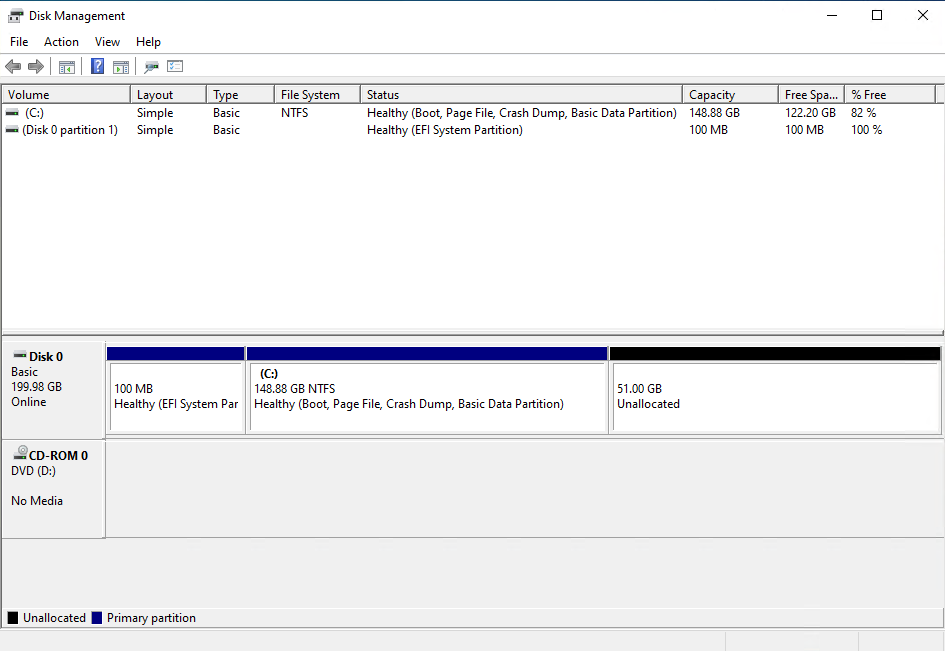
<div class="wp-block-image" id="bkmrk-disk-management-with"><figure class="aligncenter size-full">![](https://thedxt.ca/wp-content/uploads/2023/06/deleted-Windows-RE.png)<figcaption class="wp-element-caption">Disk Management with the Recovery Partition deleted</figcaption></figure></div>- Expand your disk and leave about 1024 MB off your resized size to leave room for the re-enabling the Recovery Partition.
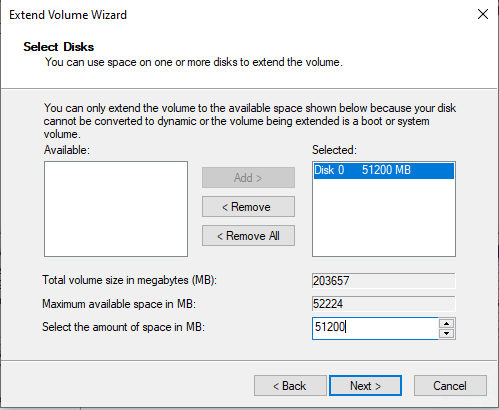
<div class="wp-block-image" id="bkmrk-expanding-the-partit"><figure class="aligncenter size-full">![](https://thedxt.ca/wp-content/uploads/2023/06/Extend-Disk.png)<figcaption class="wp-element-caption">Expanding the partition but leaving room for the Windows Recovery Partition</figcaption></figure></div>Disk Management should now look something like this.
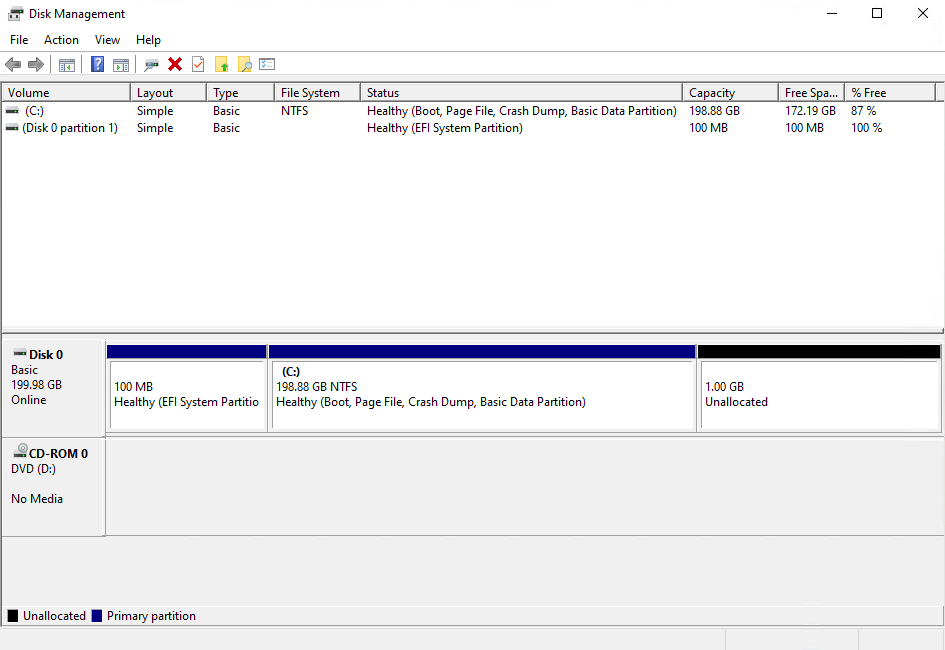
<div class="wp-block-image" id="bkmrk-disk-management-afte"><figure class="aligncenter size-full">![](https://thedxt.ca/wp-content/uploads/2023/06/resized-disk.png)<figcaption class="wp-element-caption">Disk Management after expanding the disk and leaving room for the Windows Recovery Partition</figcaption></figure></div>Once the disk is expanded we need to rebuild everything that is needed for Windows to know that the extra space that we left unallocated can be used to for the recovery partition.

- Create a New Simple Volume with the unallocated space.
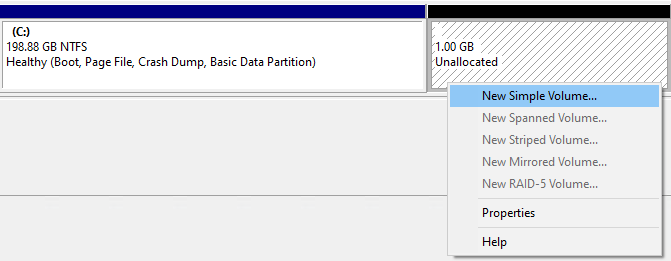
<div class="wp-block-image" id="bkmrk-creating-a-new-simpl"><figure class="aligncenter size-full">![](https://thedxt.ca/wp-content/uploads/2023/06/new-simple-vol.png)<figcaption class="wp-element-caption">Creating a New Simple Volume</figcaption></figure></div>- Don’t give it a drive letter.

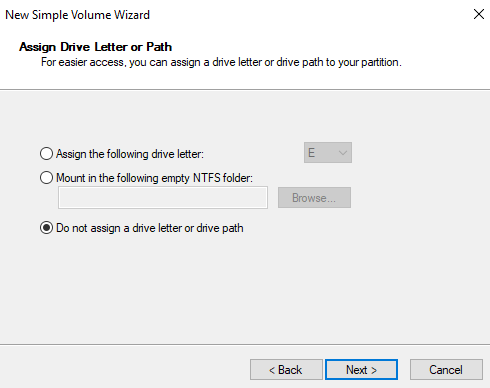
<div class="wp-block-image" id="bkmrk-not-giving-the-new-s"><figure class="aligncenter size-full">![](https://thedxt.ca/wp-content/uploads/2023/06/no-dirve-letter.png)<figcaption class="wp-element-caption">Not giving the New Simple Volume a drive letter or a drive path</figcaption></figure></div>- You can give the new partition a name if you want it does not mater. I’m going to call mine New Recovery.
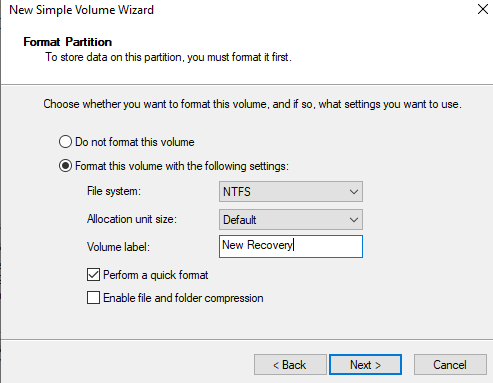
<div class="wp-block-image" id="bkmrk-naming-the-new-simpl"><figure class="aligncenter size-full">![](https://thedxt.ca/wp-content/uploads/2023/06/partition-name.png)<figcaption class="wp-element-caption">Naming the New Simple Volume</figcaption></figure></div>Disk Management should now look something like this.
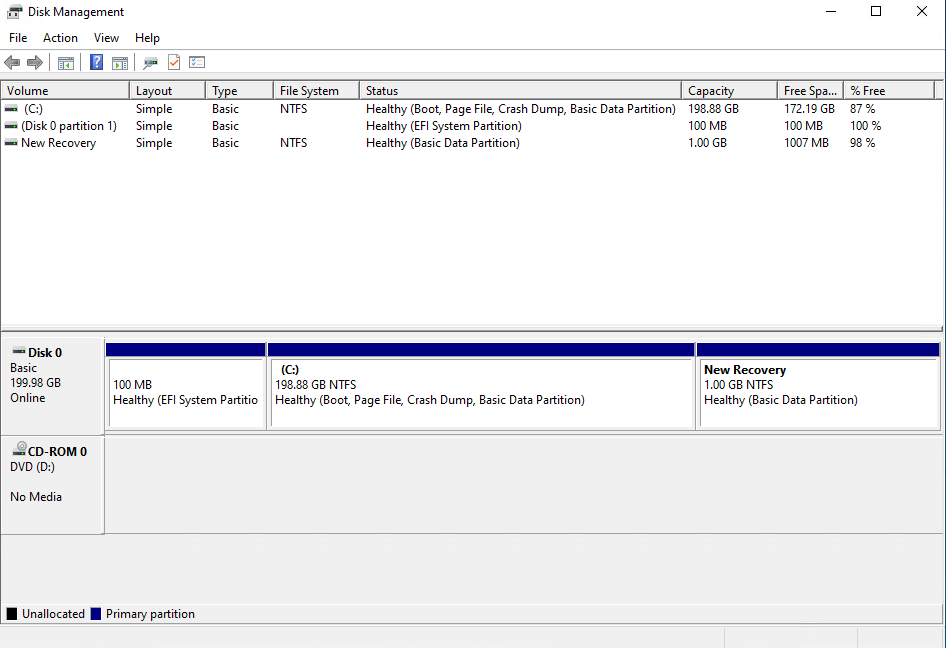
<div class="wp-block-image" id="bkmrk-disk-management-with-1"><figure class="aligncenter size-full">![](https://thedxt.ca/wp-content/uploads/2023/06/diskmgmt-new-par.png)<figcaption class="wp-element-caption">Disk Management with the newly created partition that will become the Windows Recovery Partition</figcaption></figure></div>## Back to DiskPart

- In DiskPart list your partitions again by running the command `list partition`
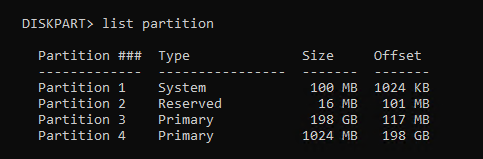
<div class="wp-block-image" id="bkmrk-listing-the-partitio-1"><figure class="aligncenter size-full is-resized">![](https://thedxt.ca/wp-content/uploads/2023/06/list-par-2nd-time.png)<figcaption class="wp-element-caption">Listing the partitions with DiskPart</figcaption></figure></div>- Select the 1024 MB partition with the command `select partition` and the partition number. In my setup it was partition 4 and the command I ran was `select partition 4`

<div class="wp-block-image" id="bkmrk-selecting-the-partit-1"><figure class="aligncenter size-full">![](https://thedxt.ca/wp-content/uploads/2023/06/sel-par.png)<figcaption class="wp-element-caption">Selecting the partition with DiskPart</figcaption></figure></div>If you have a GPT disk you need to run some very specific command and if you have an MBR disk you need to run different very specific commands.

### GPT disk

On GPT disks we need to change the partition ID to **de94bba4-06d1-4d40-a16a-bfd50179d6ac** which tells Windows that this is a recovery partition

- Run the following command to set the partition as a recovery partition `set id=de94bba4-06d1-4d40-a16a-bfd50179d6ac`

<div class="wp-block-image" id="bkmrk-setting-the-gpt-part"><figure class="aligncenter size-full">![](https://thedxt.ca/wp-content/uploads/2023/06/GPT-par-ID.png)<figcaption class="wp-element-caption">Setting the GPT partition ID in DiskPart</figcaption></figure></div>We also need to hide the drive and flag it as a required partition to do that we have to set a GPT attribute to **0x8000000000000001**

- Run the following command to set the GPT attribute to hide the drive and flag it as required `gpt attributes=0x8000000000000001`

<div class="wp-block-image" id="bkmrk-setting-the-gpt-attr"><figure class="aligncenter size-full">![](https://thedxt.ca/wp-content/uploads/2023/06/gpt-attribute.png)<figcaption class="wp-element-caption">Setting the GPT attribute in DiskPart</figcaption></figure></div>- Now we can exist DiskPart.

<div class="wp-block-image" id="bkmrk-exiting-diskpart"><figure class="aligncenter size-full">![](https://thedxt.ca/wp-content/uploads/2023/06/exit-diskpart.png)<figcaption class="wp-element-caption">Exiting DiskPart</figcaption></figure></div>### MBR disk

On MBR disks we need to change partition ID to **27** which will tell Windows that this is a recovery partition.

- Run the following command to set the partition as a recovery partition `set id=27`

<div class="wp-block-image" id="bkmrk-setting-the-mbr-part"><figure class="aligncenter size-full is-resized">![](https://thedxt.ca/wp-content/uploads/2023/06/BIOS-par-ID.png)<figcaption class="wp-element-caption">setting the MBR partition ID in DiskPart</figcaption></figure></div>- Now we can exist DiskPart.

<div class="wp-block-image" id="bkmrk-exiting-diskpart-1"><figure class="aligncenter size-full">![](https://thedxt.ca/wp-content/uploads/2023/06/exit-diskpart.png)<figcaption class="wp-element-caption">Exiting DiskPart</figcaption></figure></div>## Enabling The Windows Recovery Partition

- Now we can re-enable the recovery partition by running the command `reagentc /enable`

<div class="wp-block-image" id="bkmrk-enabling-the-windows-1"><figure class="aligncenter size-full is-resized">![](https://thedxt.ca/wp-content/uploads/2023/06/reagentc-enable.png)<figcaption class="wp-element-caption">Enabling the Windows Recovery Partition</figcaption></figure></div>The `reagentc /enable` command will copy the `Winre.wim` file from `C:\Windows\System32\Recovery` into our new recovery partition.

<div class="wp-block-image" id="bkmrk-windows-recovery-par"><figure class="aligncenter size-full">![](https://thedxt.ca/wp-content/uploads/2023/06/enabled-windows-RE.png)<figcaption class="wp-element-caption">Windows Recovery Partition file is now back on the recovery partition</figcaption></figure></div>If you look at Disk Management again everything shows up correctly.

<div class="wp-block-image" id="bkmrk--3"><figure class="aligncenter size-full">![](https://thedxt.ca/wp-content/uploads/2023/06/moved-Windows-RE.png)</figure></div>That’s all there is to it.