
Logging in to Wildix
Your Invitation
Once your account has been created, you will receive an email invitation from Wildix PBX, no-reply@wildix.com. If you don’t see it in your inbox check your junk mail as it may have been mis-filed there. If you still don’t see it, please contact us and we’ll be happy to re-send your login details; our contact details are at the bottom of this page.
This is an example of an invitation:
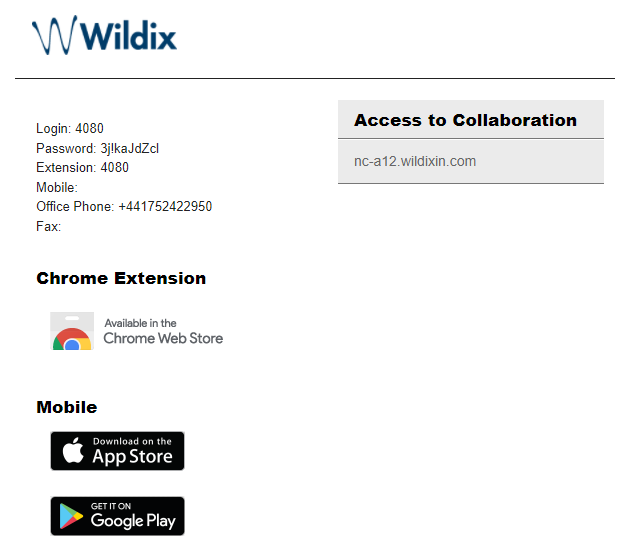
There is some key information in the email:
Logging in to the web Collaboration
Note: The Collaboration interface works best under Google Chrome and Microsoft Edge.
Open Chrome, and enter your “Access to collaboration” as received in the invitation. If the browser responds that you should use HTTPS, agree and change to HTTPS
Next, you will be greeted with the Wildix login screen:
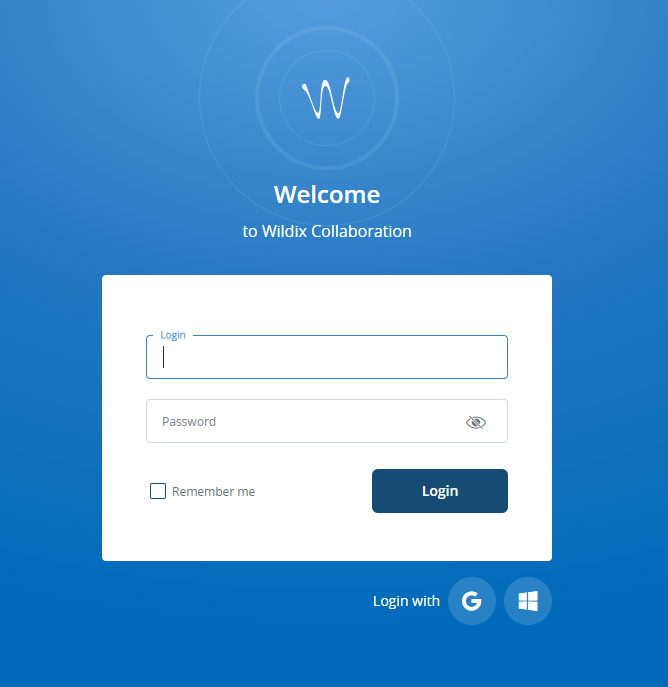
There are three ways you can log in:
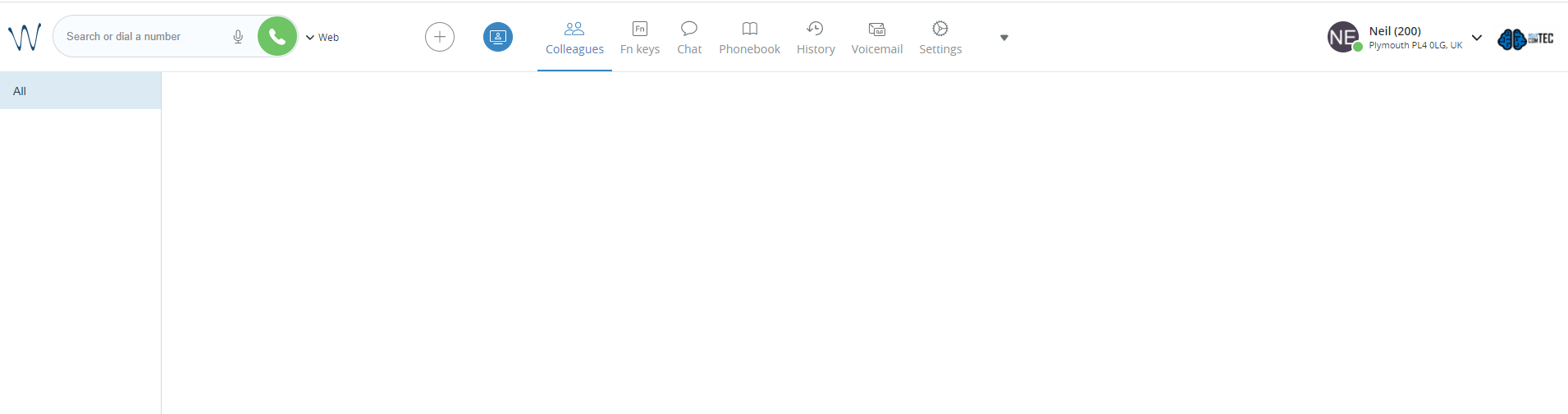
Once you have logged in, you will be in Collaboration:
Logging in using the App
The App can be used to continue your business communication and collaboration while out of the office. The first step is to follow the link in the invitation to the App Store (Apple) or Google Play (Android) and install the app:
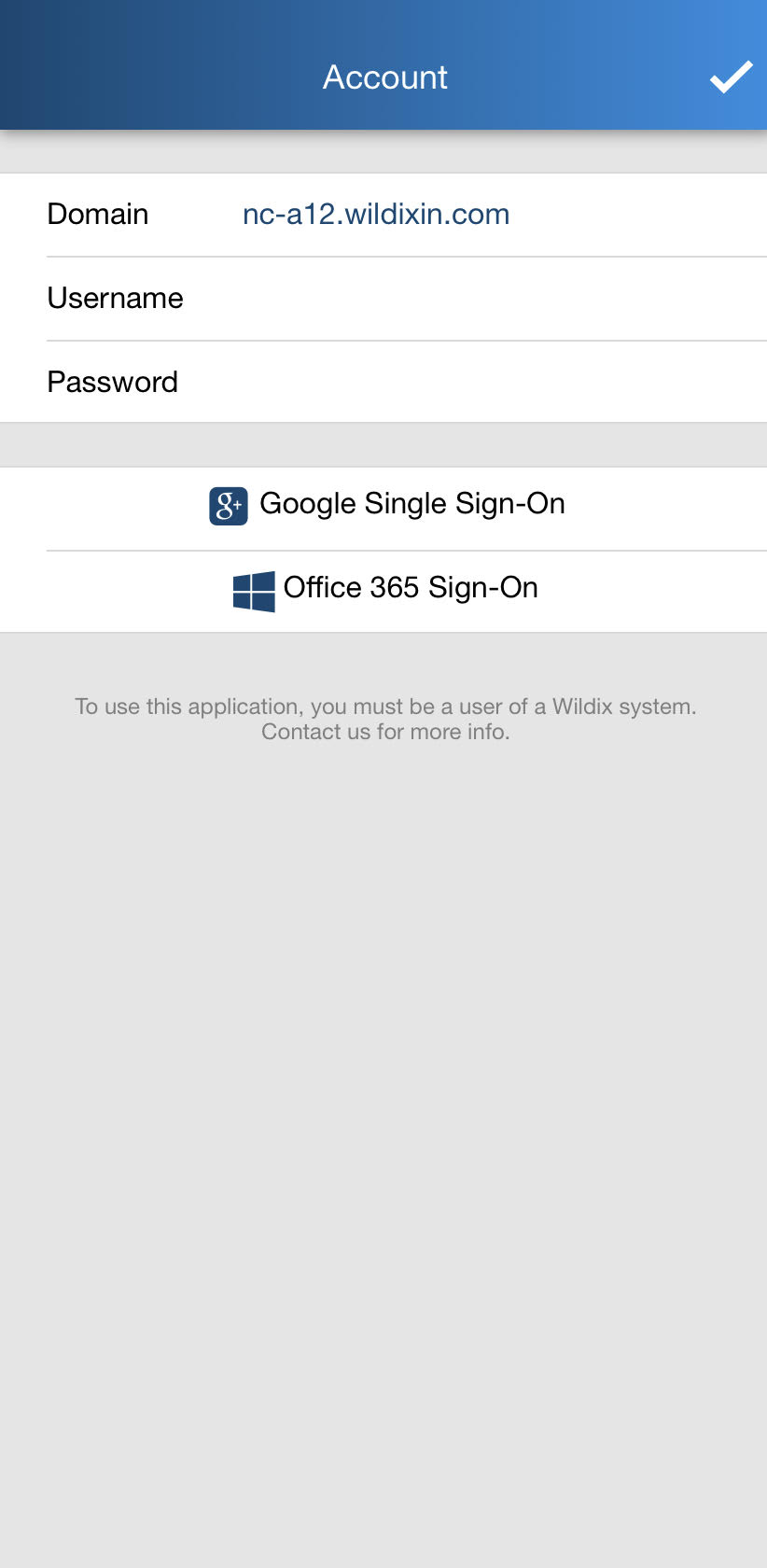
Once the app is installed, open it and it will ask you for your login information. The Domain is the hostname under “Access to Collaboration” in your invite. It will end in “.wildixin.com”
As with the web-based Collaboration, there are three ways you can log in:
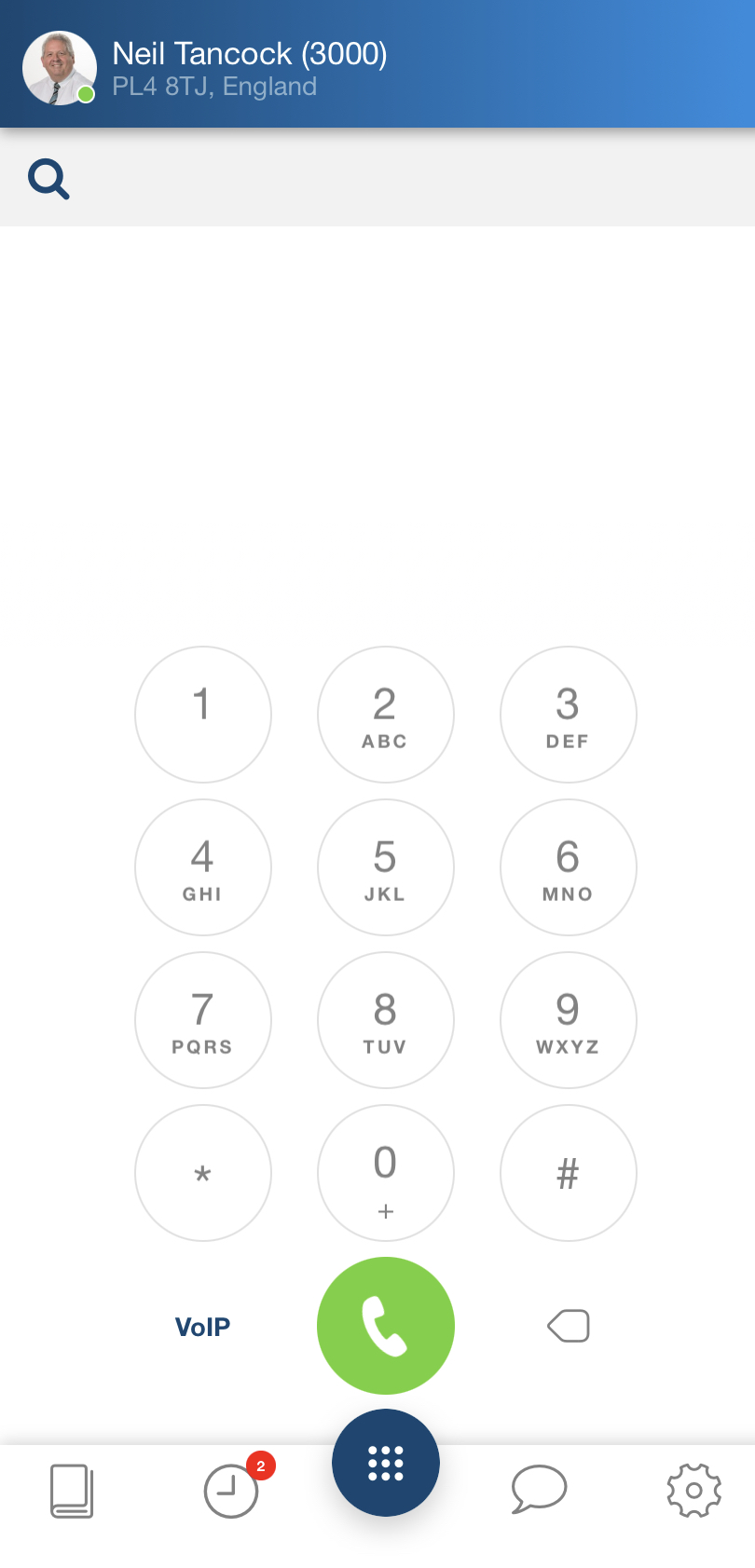
Once you have logged in, the App will be connected to your account:
You can call us on 01752 422950393600, option 2 or, if you are on Number Club, call extension 3000
You can email us at support@hellocomtec.com
You can chat with us at https://kite.wildix.com/nc-a12/3000